7. How to use the 0DETECT anti-detect browser?
Installation and first run
Download the installer from the official website and run it on a device running Windows 10 or newer, or macOS Big Sur or higher. For macOS, both Intel and Apple Silicon processors are supported.
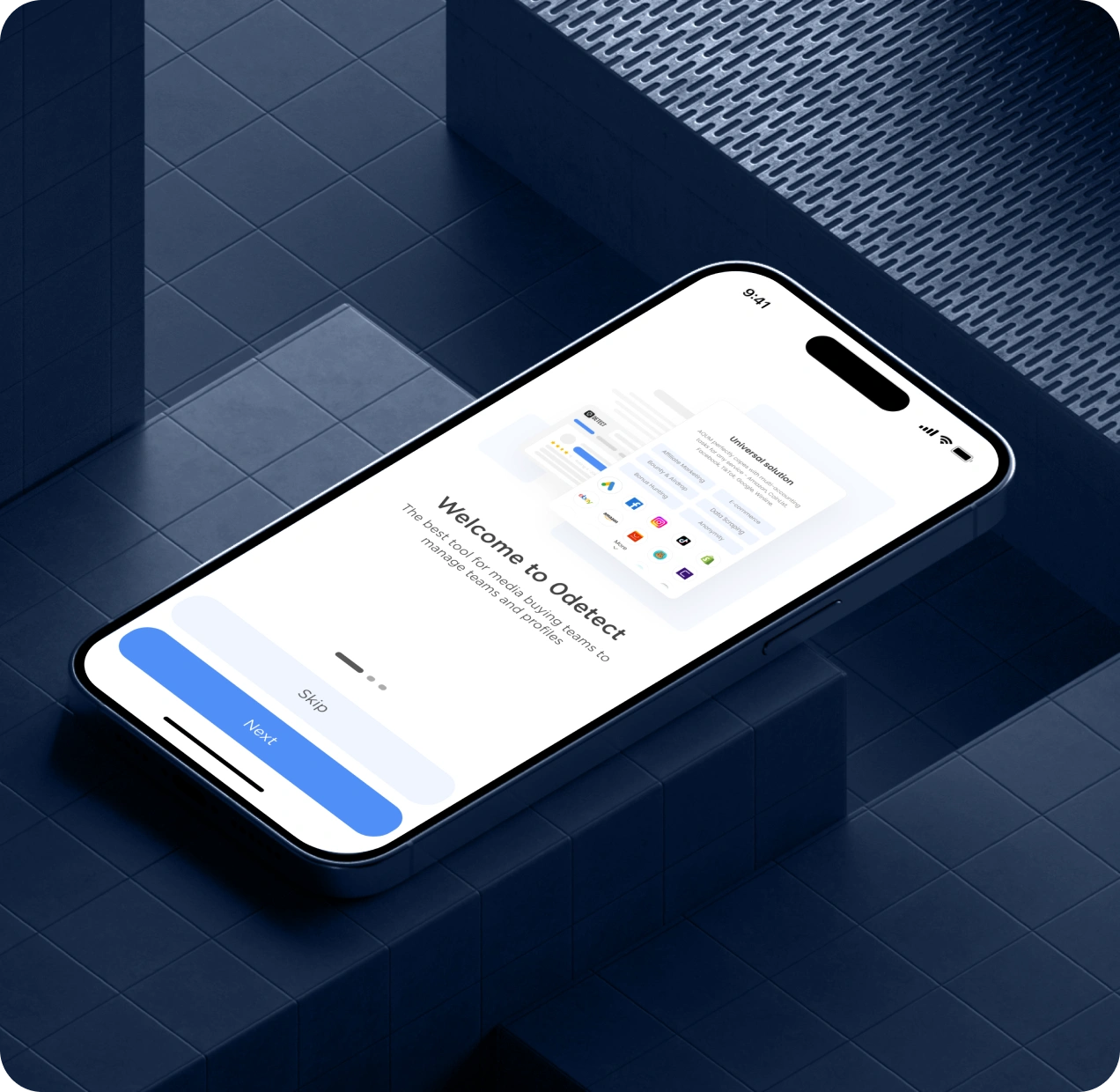
The installation process is classic: launch the installer, license agreement and create an account. After authorization you will see the main menu: Profiles, Proxies, Templates, Team, Extensions, Balance, Settings. You can replenish your account with cryptocurrency, card payments will appear later.
Creating a profile
A profile in 0DETECT is a separate virtual device with its own set of parameters. These are User Agent, time zone, language, screen resolution, font list, media devices, Canvas and WebGL. When creating a new profile, specify a name, operating system, and (for macOS) architecture. You can attach an icon, start pages, and notes to the profile. You can export saved settings to a template to quickly create similar profiles in the future.
Customizing hardware settings and fingerprint
The browser allows you to fake many characteristics that are usually checked by antifraud services. The hardware settings section sets the displayed number of CPU cores, amount of memory, video card and sound device model. There are settings for Canvas and WebGL, including a noise parameter that mimics natural hardware distortion. Client Rects, media devices, and DNS sources are also adjusted. These tools help shape a believable footprint for each profile.
Working with proxies
Proxies are added to the common list as entries specifying protocol (HTTP, HTTPS, SOCKS5), host, port, login and password. You can select a specific proxy for each profile or use a generic one. The system validates proxies through a built-in test, and DNS queries can be routed through system DNS or proxy-DNS. This ensures that the visible geolocation and network configuration match.
How to test a proxy
After you have added a new proxy, click «Proxy Test». The system will establish a connection and display the test result. If the proxy does not match the parameters or does not respond, it will be visible immediately. The test also checks if the operating system of the profile and the OS of the proxy’s network fingerprint match, as mismatches may cause blocking or additional checks on sites.
How to chain a proxy to a profile
There are two ways of chaining:
- Through the profile itself. Open the «Profiles» tab, find the profile you want and to the right of it, click on the «No Proxy» box. In the window that opens, select the «Chain to Profile» option and fill in the proxy details.
- From the list of saved proxies. If the proxy is already added to the shared list in the «Proxy» section, you can simply select it from the drop-down list in the profile connection settings.
How to launch a profile and proxy
To launch a profile with a bound proxy, open the «Profiles» tab and click the «Start» button against the required profile. If a specific proxy is selected in its settings or a proxy from the general list is connected, the browser will automatically launch with this connection. At startup, all installed settings, including User Agent, geolocation and network settings are checked to ensure correct fingerprint masking.
Extensions and cookie management
You can install extensions in two ways: by downloading ZIP/CRX files through the manager or by plugging in an extension directly from the Chrome Web Store. For bulk usage, Cookie Robot is useful. This extension automatically visits specified sites, updates cookies and trackers on a schedule. Running in the background helps keep sessions up to date without manual intervention.
Patterns, Tags, and Group Operations
Use patterns and tags to simplify your workflow. Tags help you filter and quickly find the right profiles. A pattern saves a set of settings and allows you to deploy a new profile in seconds. For teamwork, there are mechanisms for sharing profiles and synchronizing the environment between participants.
API and automation
Local API is available for rates with teamwork. The interface is implemented via Swagger, and there are examples in Python, Puppeteer, and Selenium. The API allows you to create, start, stop and delete profiles, manage proxies and get subscription status. To integrate, all you need to do is enable the Local API in settings, get a token and use the endpoints in your scripts. This is convenient for automated tasks: mass creation of environments, parsing and testing.
Plans and access rights
0DETECT offers different plans, including a trial period for new users. The plans differ in the number of available profiles, proxy limits and the number of team members. The higher packages come with API access and additional cookie options. There is also a discounted annual option and the possibility of personal tariffs.
Make your work fast and secure with 0DETECT Browser